
Label Settings
Define and manage label sets for emails and contacts.
What is Label Settings?
Label Settings is where you define and manage all labels used in your workspace, for both emails and contacts.
Only labels created here can be used, whether manually or by AI.
Label structure
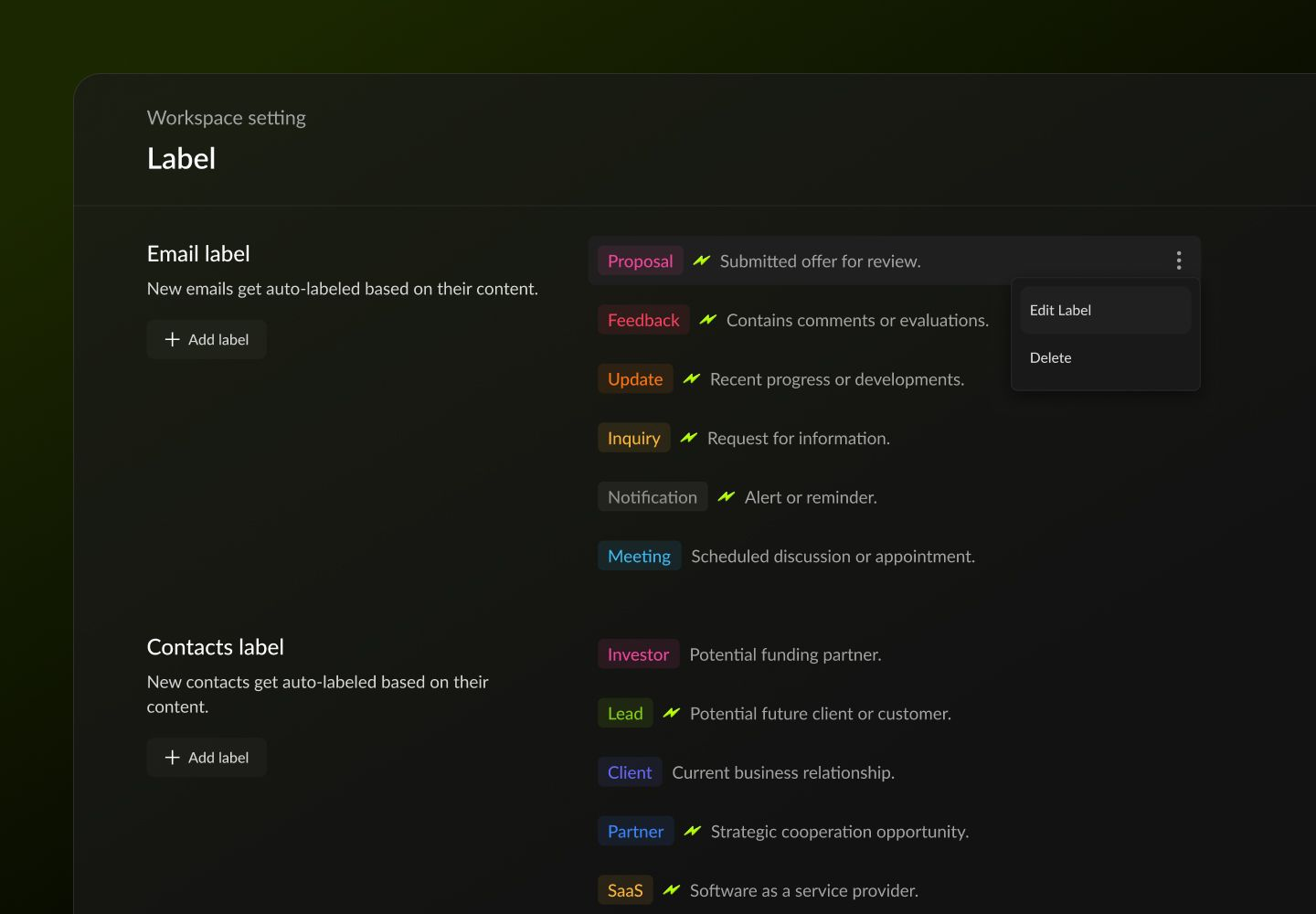
Each label has four components:
Title
The name shown in the interface
Color
A visual cue for quick recognition
AI Labeling
Decide whether the label is used for automatic AI labeling or only for manual use
Description
Explains what kind of emails or contacts this label applies to. This is what AI uses to evaluate new data.
The clearer the descriptions, the better your AI labeling will perform.
Add a new label
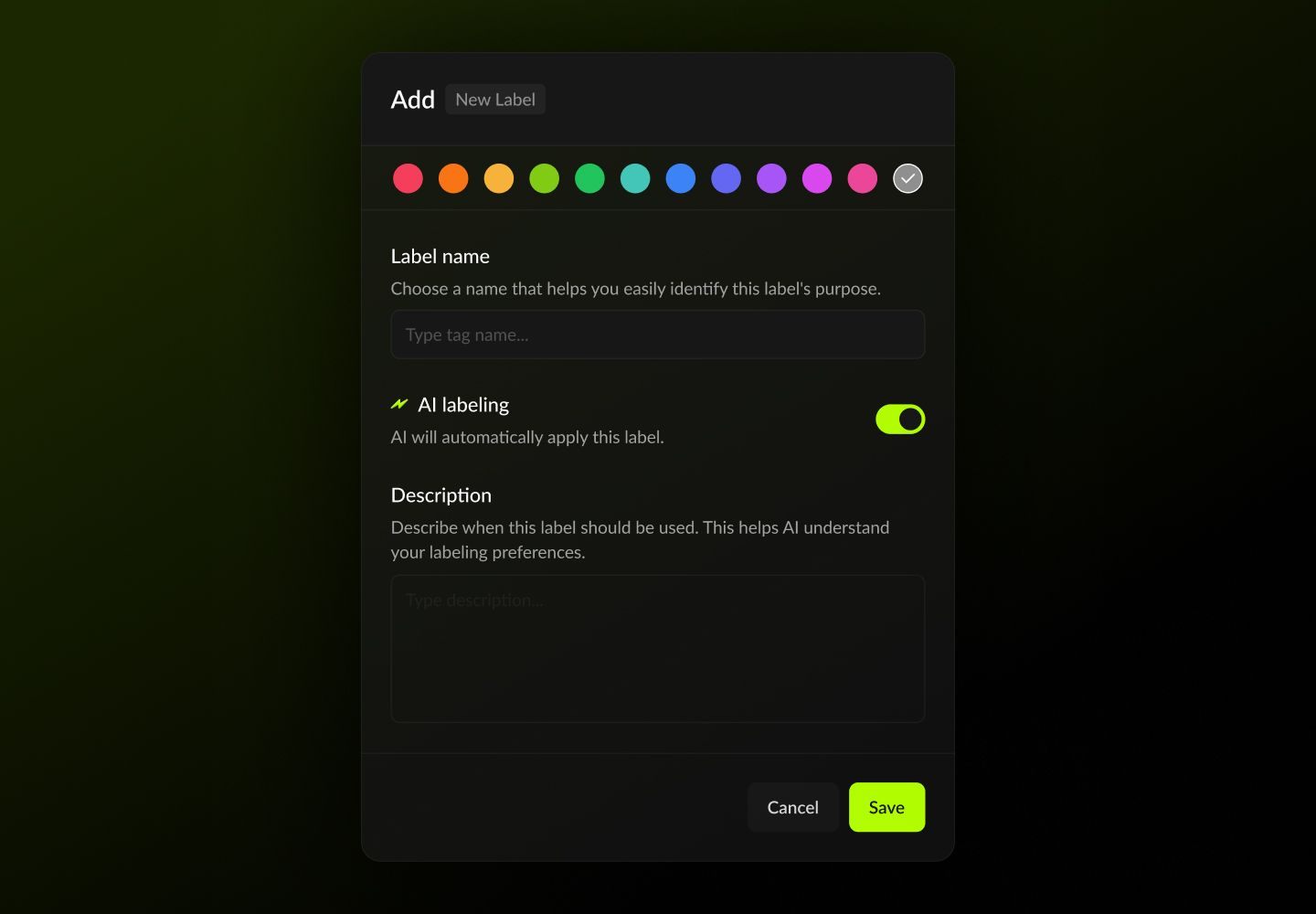
To create a label:
Choose whether it’s an email or contact label
Set the name, color, and description
Decide whether it should be used for AI labeling
Once created, it will be used for future data only. Taurin does not reprocess existing emails retroactively.
📌 Tip
Create new labels when you’re introducing a new meaning or rule.
Don’t overwrite old labels with a new intent.
Edit a label
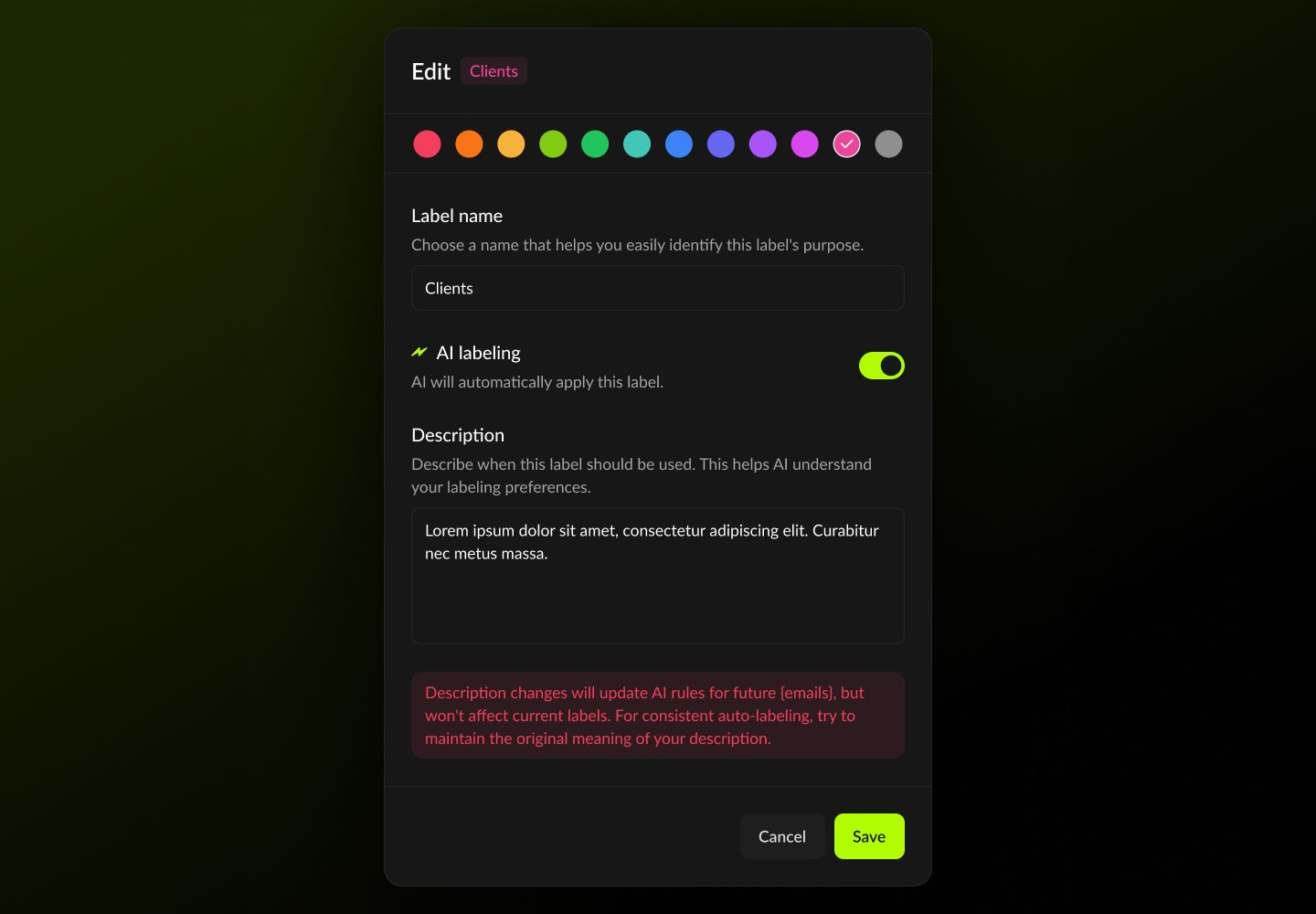
You can update the name, color, or description of any existing label.
Name or color → updates everywhere, including past messages
Description → only affects future AI labeling
Delete a label
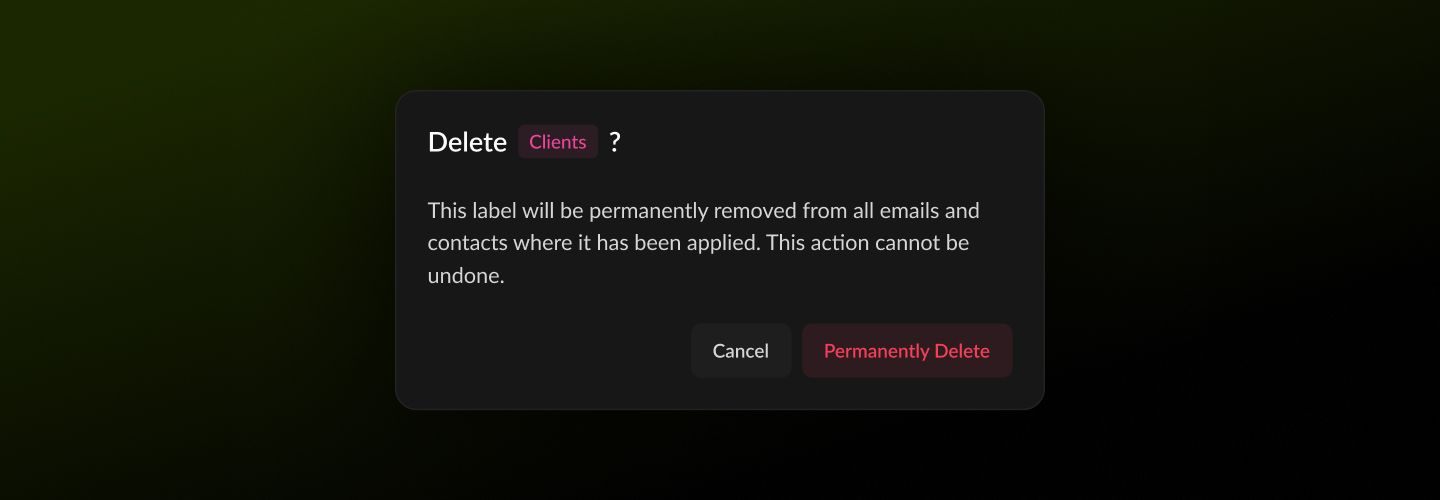
Deleting a label will:
Prevent it from being used on new emails or contacts
Immediately hide it from the interface
⚠️ This action is irreversible and takes effect immediately.
📌 Tip
Taurin’s labeling system works best when each label has a clear, distinct purpose.
Overlapping or vague labels reduce the effectiveness of filtering and automation.Was this helpful?