
Overview
What is the Contact Panel?
Whenever you open an email thread in Taurin, you’ll see a panel on the right side of the screen.
This is the Contact Panel, your relationship view for the person you’re emailing with.
It shows you who they are, what you’ve talked about, and what’s changed over time.
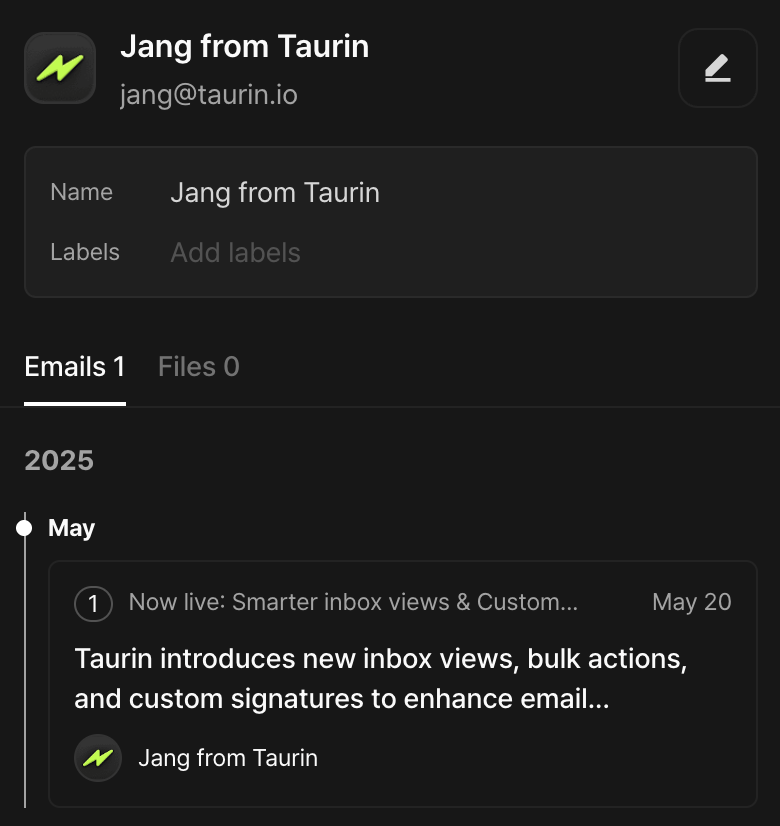
What’s inside the panel
Contact Name
Click to rename the contact (e.g. “Sam (VC)”)
Great for disambiguation or clarity
Contact Labels
Add one or more labels to describe who this person is to you
Example: Customer, Investor, Vendor
Labels are added manually and used for organization, filtering, and prioritization
Timeline View
A scrollable summary of all past threads with this contact
Powered by AI summaries. No need to reread everything
Helps you recall what you’ve discussed, at a glance
Files
Shows all attachments exchanged with this contact
Easy way to retrieve contracts, decks, or assets without digging
Why it matters
Most email tools treat people like senders.
Taurin treats them like relationships.
This panel helps you understand your full context with someone, not just the last message they sent.
📌 Tip
Before replying to an important message, scroll through the Timeline View.
You’ll spot missed follow-ups, stale conversations, or moments worth revisiting.Was this helpful?